Military sandbox · Unity WebGL
DummyWar
Build a small battle between two teams, watch the AI soldiers react, or take direct control of a fighter. The hosted browser build opens below.
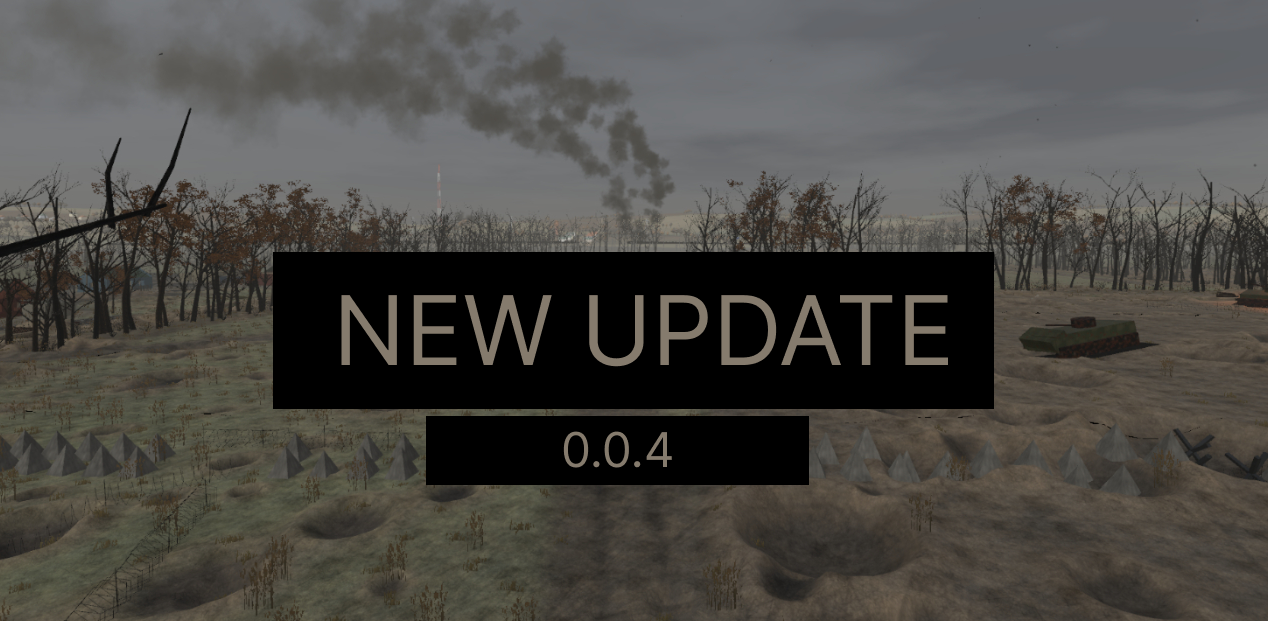
If the embedded game stays blank or struggles to load, open it in a new tab. This browser build was observed at Alpha 0.0.4 on 1 November 2026; menus and controls can change as the prototype develops.
How to play DummyWar
DummyWar is a military sandbox, not a fixed campaign. The creator describes spawning opposing teams, observing their AI, and controlling individual soldiers. In the current hosted build, the opening menu offers Play, Teams, and Settings. Choose Play to set up a new battle.
Use the arrows in New Battle to cycle through maps. Read the map description before committing.
Choose Battle for a direct clash or Capture the Points for an objective-focused fight.
Select a team for Side One and Side Two. Use Edit teams if you want to adjust the rosters first.
Press Start battle, then use the command panel or soldier list to observe and direct the fight.
| On-screen control | What it does | When to use it |
|---|---|---|
| Place / Group / Attack | Command buttons for each side in observer view. | Position soldiers, organize a group, or order an attack. |
| Soldiers list | Shows team members, health and current behavior. The build labels click to select and double-click to take control. | Find a specific soldier to inspect or play as. |
| Slow motion / Clear bodies | Battlefield viewing and cleanup controls. | Study an encounter or clear fallen units from view. |
| P / Esc | Pause / open the game menu, as labeled in the hosted build. | Stop the action or return to menu options. |
Click inside the game frame before using keyboard controls. Use the WebGL player's full-screen button if the interface is too small. The creator's itch.io download page currently lists Windows; this page links to the separately hosted browser build supplied for this site.
Battlefield guide
There is no single required win route in this sandbox. Use this sequence to learn the systems without losing track of which change affected the battle.
A useful first battle
- Leave the default map and teams selected. Start in Battle mode, then watch the two health bars and the Soldiers list to see how the squads engage.
- Select one soldier from the list. Double-click that entry to take control when you want to join the fight; return to observation through the in-game controls shown by that build.
- Run a second battle on the same map with Capture the Points selected. Compare how the AI approaches the objectives rather than treating it like a simple elimination match.
- Change only one team or map setting at a time. This makes it easier to see how roster composition, cover, and terrain affect the outcome.
Three things to watch
| System | What to observe | Practical tip |
|---|---|---|
| Cover and movement | Soldiers seek positions and move when pinned down. | Watch the status beside each name before issuing another command. |
| Team composition | Different roles appear in the roster, including medics and specialist weapons. | Use Edit teams between battles to test a different mix. |
| Physics and injuries | Hits affect balance, movement and combat behavior. | Slow motion helps reveal a difficult-to-follow exchange. |
Sources: GuFugu's official DummyWar page for the sandbox concept, developer, and features. Mode names, command labels, and the Alpha 0.0.4 version were checked in the hosted WebGL build. The thumbnail is artwork from the creator's itch.io listing.
Questions players ask
Is DummyWar a campaign game?
The creator presents it as an experimental sandbox. Set up battles, try different teams, and observe or control soldiers; there is no fixed campaign route described on the creator's page.
What is the difference between Battle and Capture the Points?
Battle stages a clash between the two sides. Capture the Points adds map objectives that teams must contest. Both choices appear in the hosted New Battle menu.
Why does the game take time to start?
The hosted version loads a Unity WebGL build. Let its loading screen finish, or use the direct link if the embedded player does not start.
Can I play on a phone?
The creator lists the downloadable version for Windows and has said a mobile version is not planned. The hosted WebGL build is best approached with a desktop keyboard and mouse.
All browser games on this site
Explore every game page in the collection. Each cover is shown in full, without cropping.